
Turn any web page into a spreadsheet
TableGrab finds the tables and lists on the page you are looking at, such as products, search results, directories or price lists, and turns them into clean rows and columns. Choose the columns you want, collect more pages, then download a file or paste into your spreadsheet.
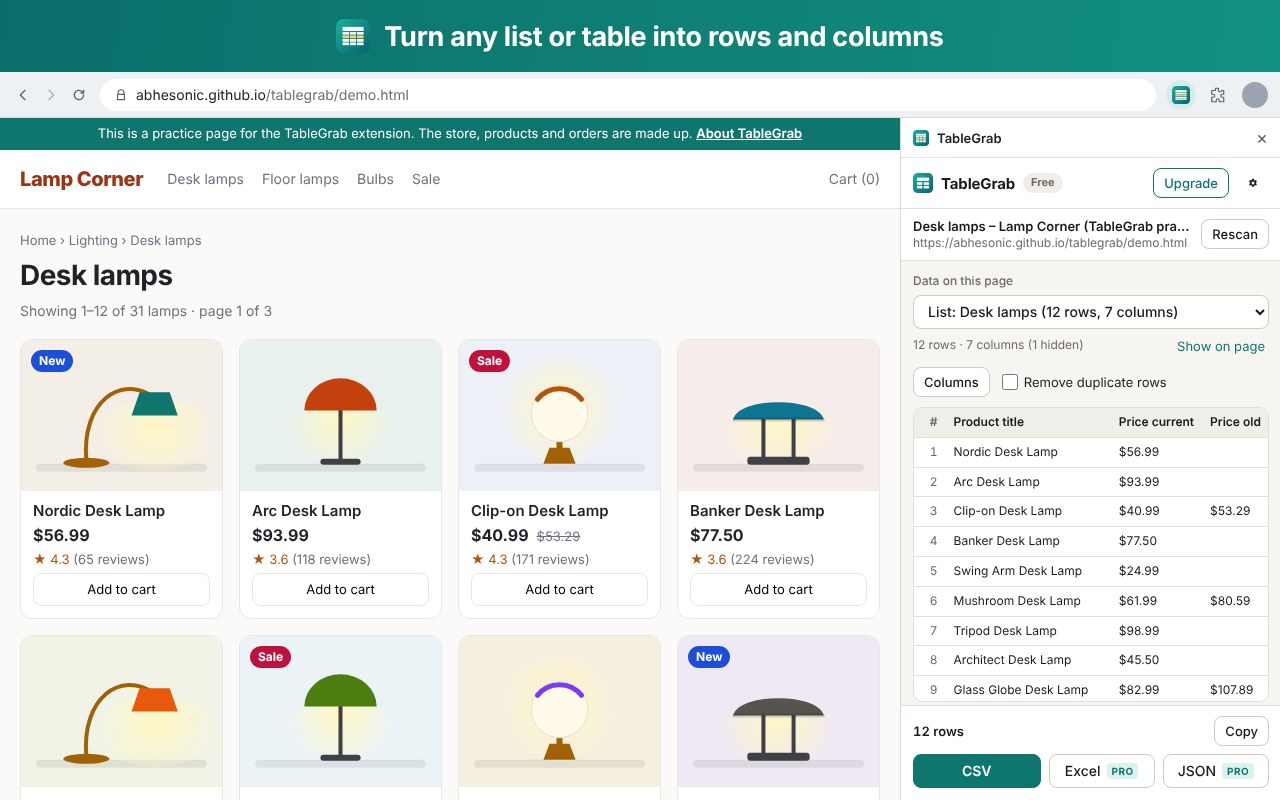
How it works
- Open a page with a table or a list and click the TableGrab icon in Chrome's toolbar.
- A panel opens next to the page with the data already in rows and columns. Untick, rename or reorder columns if you like.
- Press CSV to download, or Copy and paste straight into your spreadsheet.
- More pages? Press Find it to show TableGrab the page's Next button, then Start. Pages that load more as you scroll work too.
What it does
Finds the data for you
Tables, product grids, search results, listings and directories are recognised automatically, with sensible column names.
Many pages in one go
Follows Next buttons, presses "Load more" and scrolls pages that keep loading, adding only the new rows.
Clean columns
Text, links and image addresses in separate columns. Repeated and empty columns are hidden, duplicates can be removed.
Private by design
Runs in your browser on pages you open yourself. No account, no tracking, no ads. Your data never goes to us.
Free and Pro
| Free | Pro | |
|---|---|---|
| Find tables and lists on a page | ✓ | ✓ |
| Choose, rename and reorder columns | ✓ | ✓ |
| CSV download and copy to clipboard | ✓ | ✓ |
| Pages per run (Next button, Load more, endless scroll) | 3 | Up to 500 |
| Excel (.xlsx) and JSON files | – | ✓ |
| Saved setup for each website | – | ✓ |
| Add the same data from other tabs of the same site | – | ✓ |
Pro is a one-time payment of US$19 (plus tax where it applies). No subscription. Payments are handled by Lemon Squeezy; Pro is sold by the TableGrab developer, not by Google. See the terms of sale and refunds.
How to activate Pro
- In TableGrab, click Upgrade, then Get Pro.
- After paying, copy the license key from the confirmation page or from your receipt email.
- In TableGrab, click Upgrade again, paste the key under Already bought it? and press Activate.
Moving to a new computer? Open TableGrab settings (the gear icon), press Remove license from this browser, then activate the same key on the new one.
FAQ
TableGrab does not find the data I want
Wait until the page has finished loading, scroll so the data is on screen, then press Rescan. If the page shows several tables or lists, pick the right one under Data on this page; Show on page outlines it. Data drawn as a picture or inside an embedded frame cannot be read.
Excel shows strange characters or puts everything in one column
Open TableGrab settings and keep Mark CSV files as UTF-8 switched on. If your Excel uses a semicolon as the list separator (common in Europe and parts of Asia), choose Semicolon as the CSV separator. Pro can also save real Excel files.
Does TableGrab work on pages where I am signed in?
Yes. It reads the page exactly as you see it in your own browser and never signs in anywhere for you. Please only collect data you are allowed to use and respect each website's terms.
Is my data uploaded anywhere?
No. Everything happens in your browser. The only thing TableGrab ever sends is a Pro license key, to Lemon Squeezy, when you activate or re-check it. See the privacy policy.
Can I get a refund?
Yes, within 14 days of purchase. Email muhakbaryusuf.ppp@gmail.com with your order number.